
Connect Your Wallet
INFO
Screenshots on this page are demonstrated using FoxChat wallet. The steps are the same in any Web3 wallet that supports BSC.
Signa does not have accounts, usernames, or passwords. Your wallet is your identity on the protocol. Connecting it is all you need to do to get started.
Opening Signa
You can open Signa directly at signamarkets.com, or through any Web3 wallet with a built-in browser. FoxChat lists Signa in its DApps section.
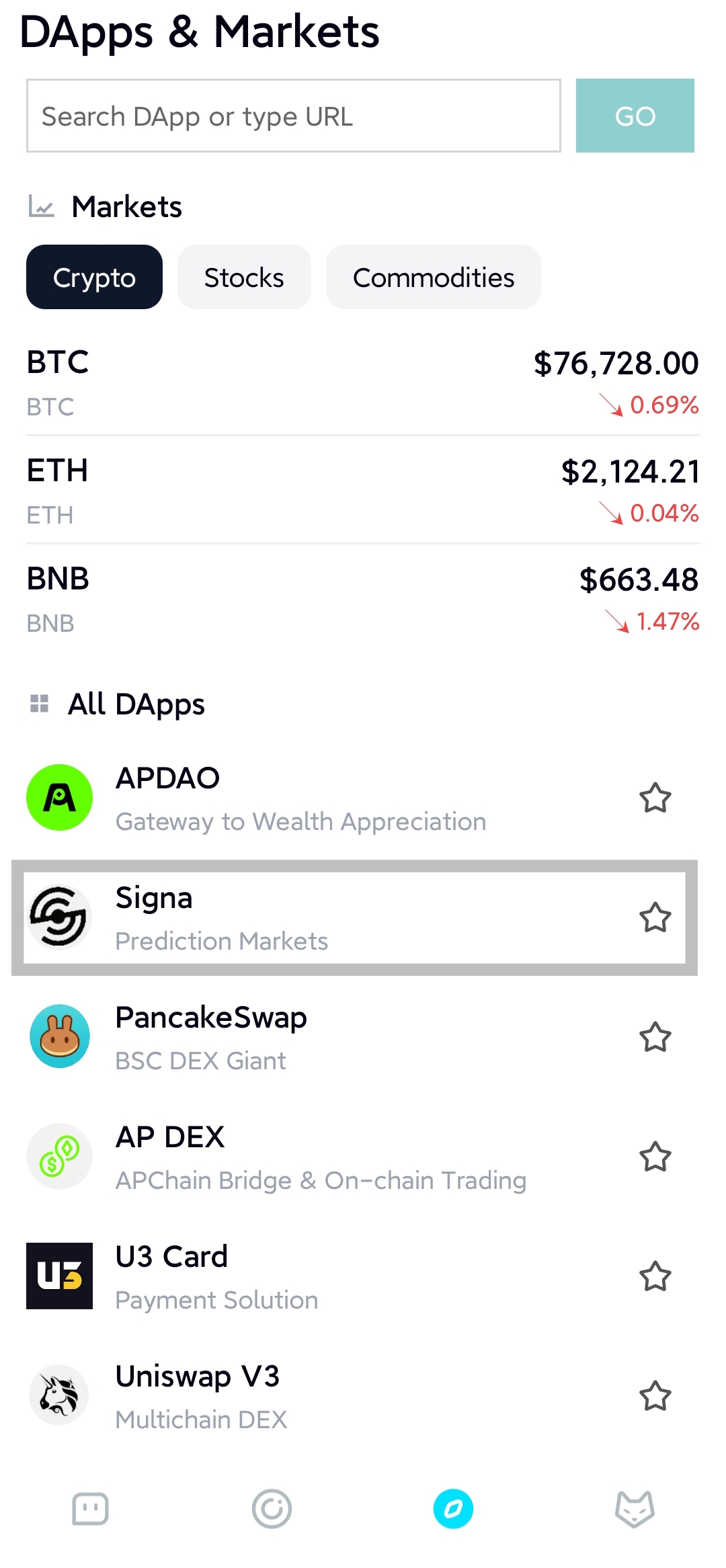 Find Signa in the FoxChat DApps section and tap it.
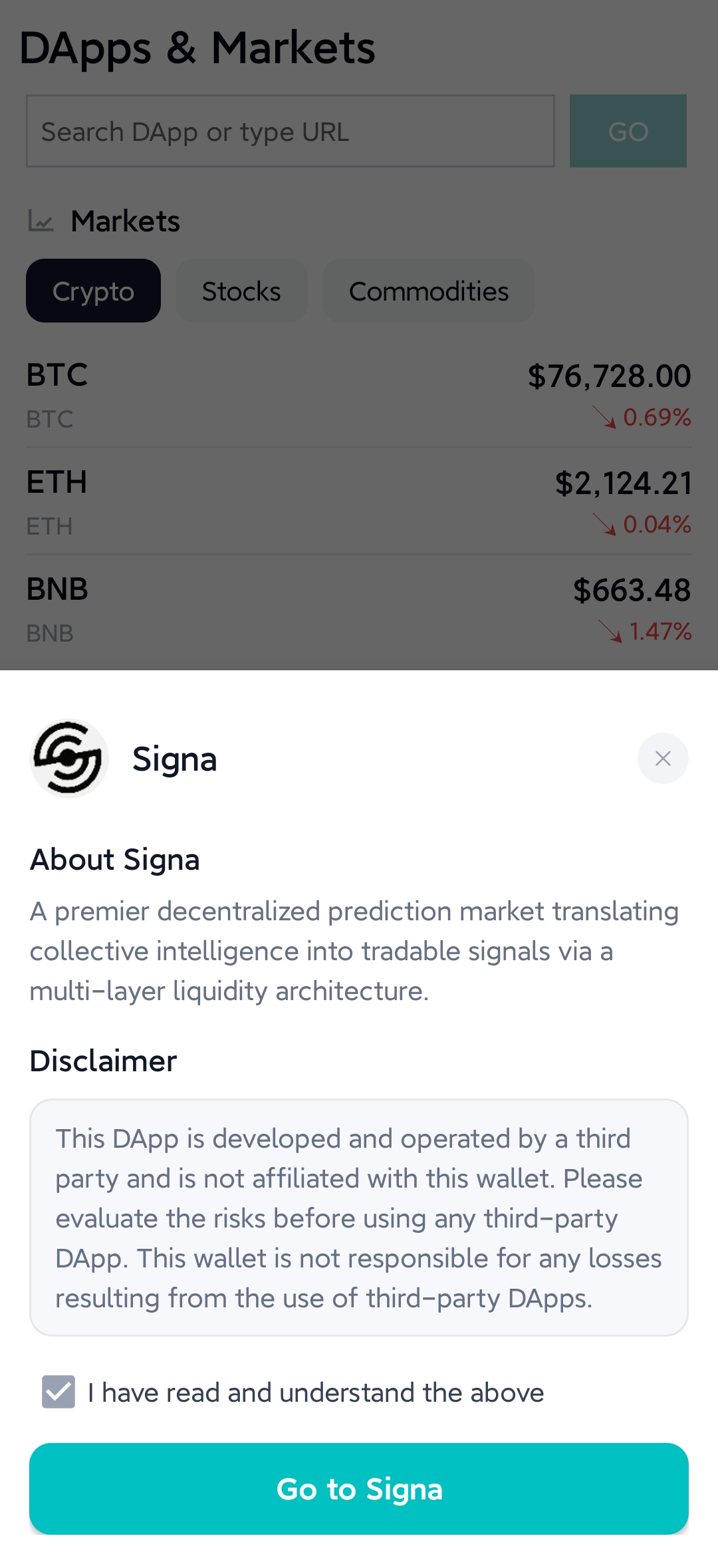 FoxChat shows a brief disclaimer before opening any third-party DApp. Tick the checkbox and tap Go to Signa.
Your wallet is your identity
Everything on Signa is tied to a wallet address: your positions, your claimable rewards, your market activity. When you connect your wallet, the protocol recognizes you by that address — nothing else.
This means there is no profile to set up, no email to verify, and no personal information required. Connect your wallet and you can participate immediately.
What you need before connecting
Three things:
A Web3 wallet that supports BSC. Signa is deployed on BNB Smart Chain. Your wallet needs to support BSC and be able to sign transactions on that network. Most major Web3 wallets support BSC out of the box or with a quick network addition.
Your wallet set to the BSC network. Having a BSC-compatible wallet is not enough on its own — it also needs to be actively connected to BSC when you interact with Signa. If your wallet is on a different network, transactions will not work.
A small amount of BNB for gas. Every on-chain action — placing a position, claiming a payout, withdrawing rewards — requires a gas fee paid in BNB. This is separate from the USDT you use for participation. You do not need much, but you do need some before you can do anything.
Switching to BNB Smart Chain
When you open Signa for the first time, your wallet may be on a different network. Signa detects this and prompts you to switch.
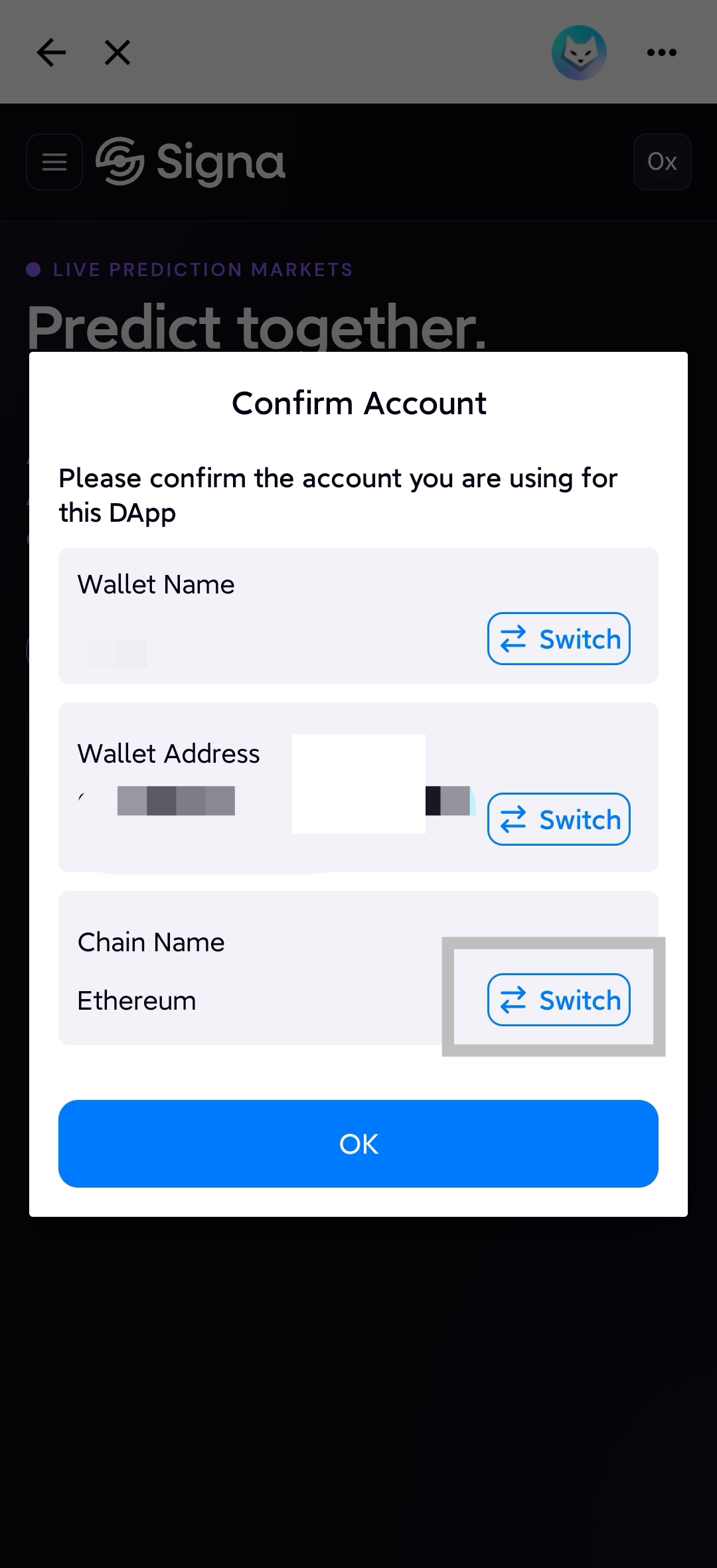 FoxChat detects the active chain when connecting. Tap Switch next to Chain Name to change it.
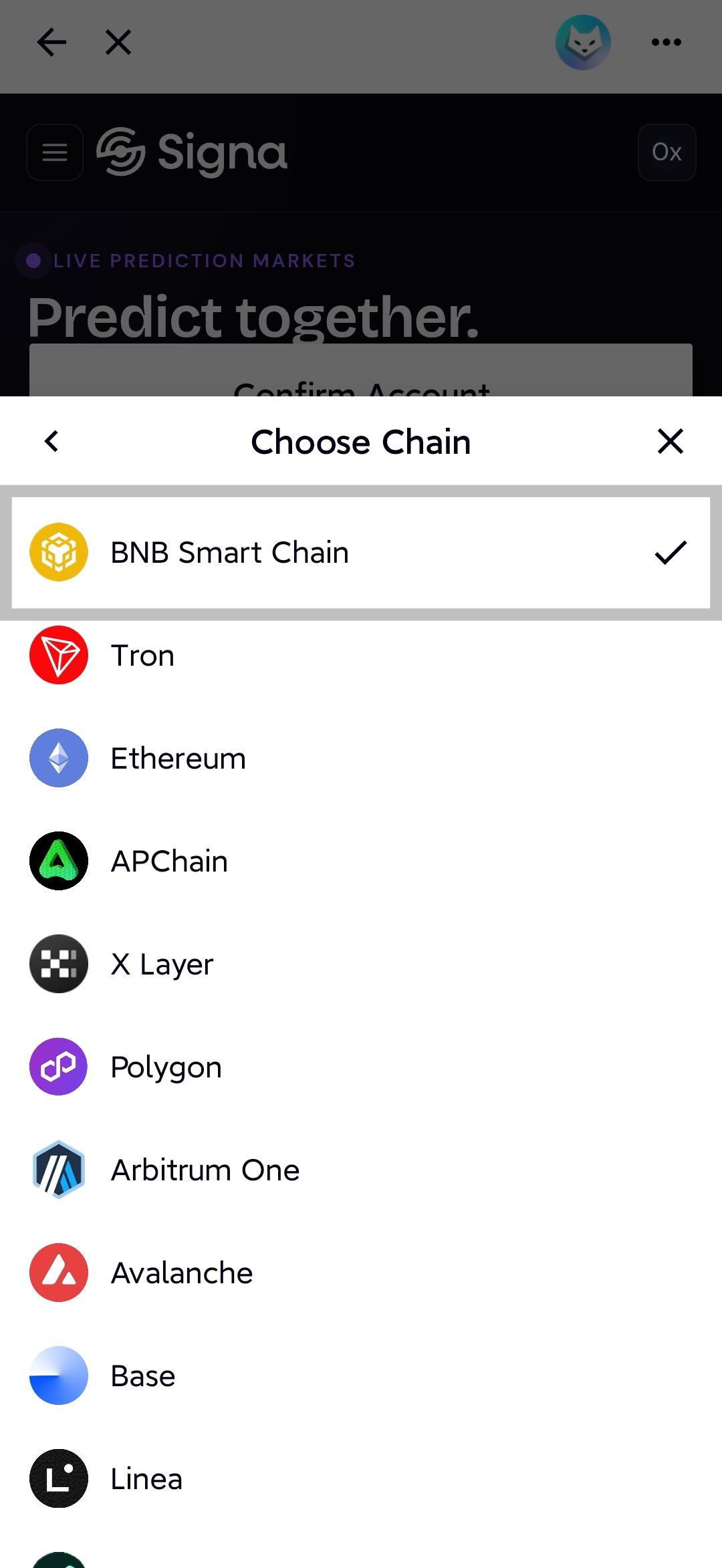 Select BNB Smart Chain. It will be checked once chosen.
If you dismiss the prompt and continue on the wrong network, Signa shows a Wrong Network indicator in the top bar. Tap it to switch directly from within the app.
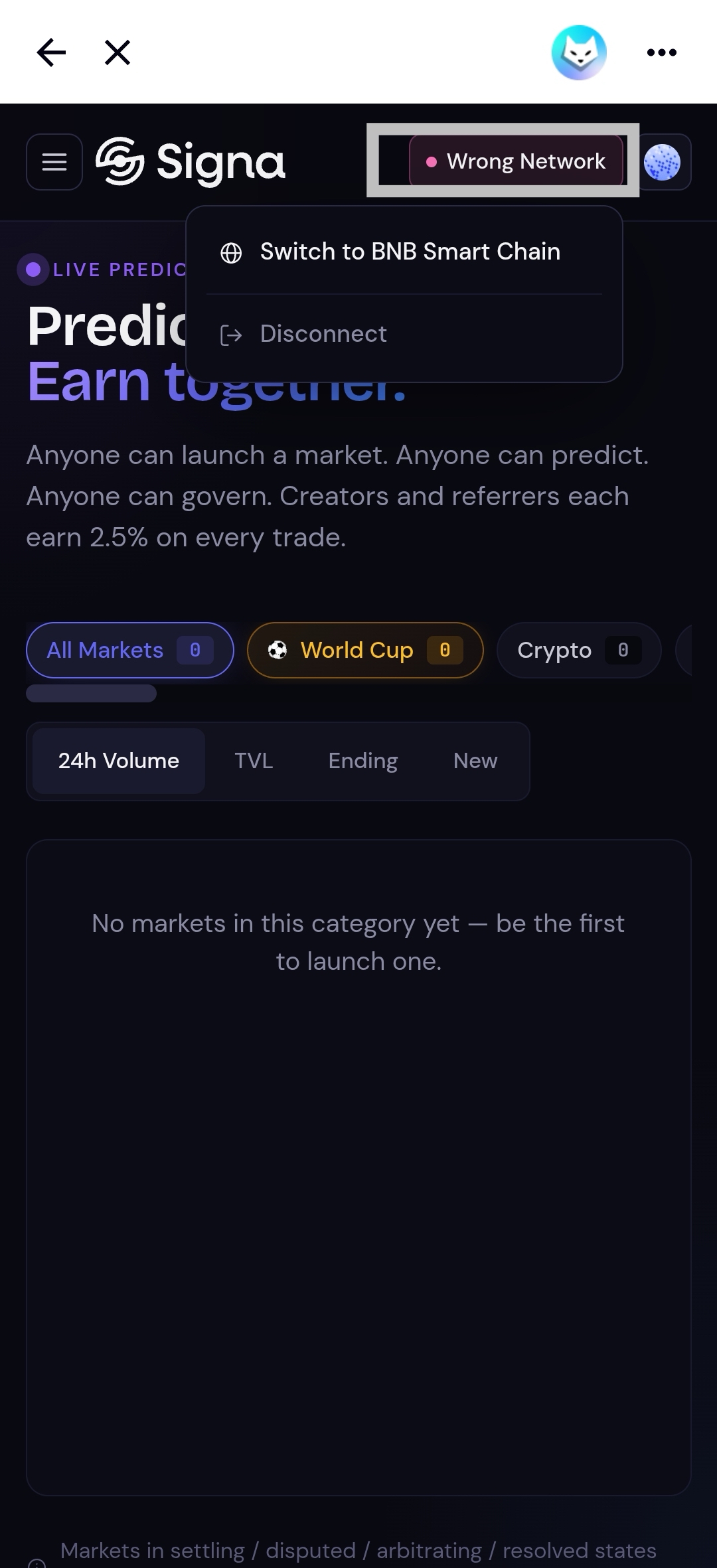 The Wrong Network indicator appears in the header if your wallet is on the wrong chain. Tap it to switch to BNB Smart Chain.
What happens when you connect
Connecting your wallet does not create an account or store any information on Signa's side. It simply allows the interface to read your on-chain state — your positions, your claimable balances — and lets you sign transactions.
Your on-chain activity is permanent and does not depend on staying connected. If you disconnect your wallet and come back later, everything is still there. Your positions are in the contracts, your claimable amounts are in the contracts, and reconnecting your wallet gives you access to all of it again.
Returning users
If you have used Signa before, there is nothing to restore or recover. Connect the same wallet you used previously and your full history is immediately accessible: open positions, past markets, pending claims, and any accumulated rewards.
The only thing that matters is connecting the right wallet — the one whose address holds your on-chain activity.
Navigating the interface
Once connected, the app is ready to use. The hamburger icon in the top-left opens the main navigation panel. You can reach it from any page.
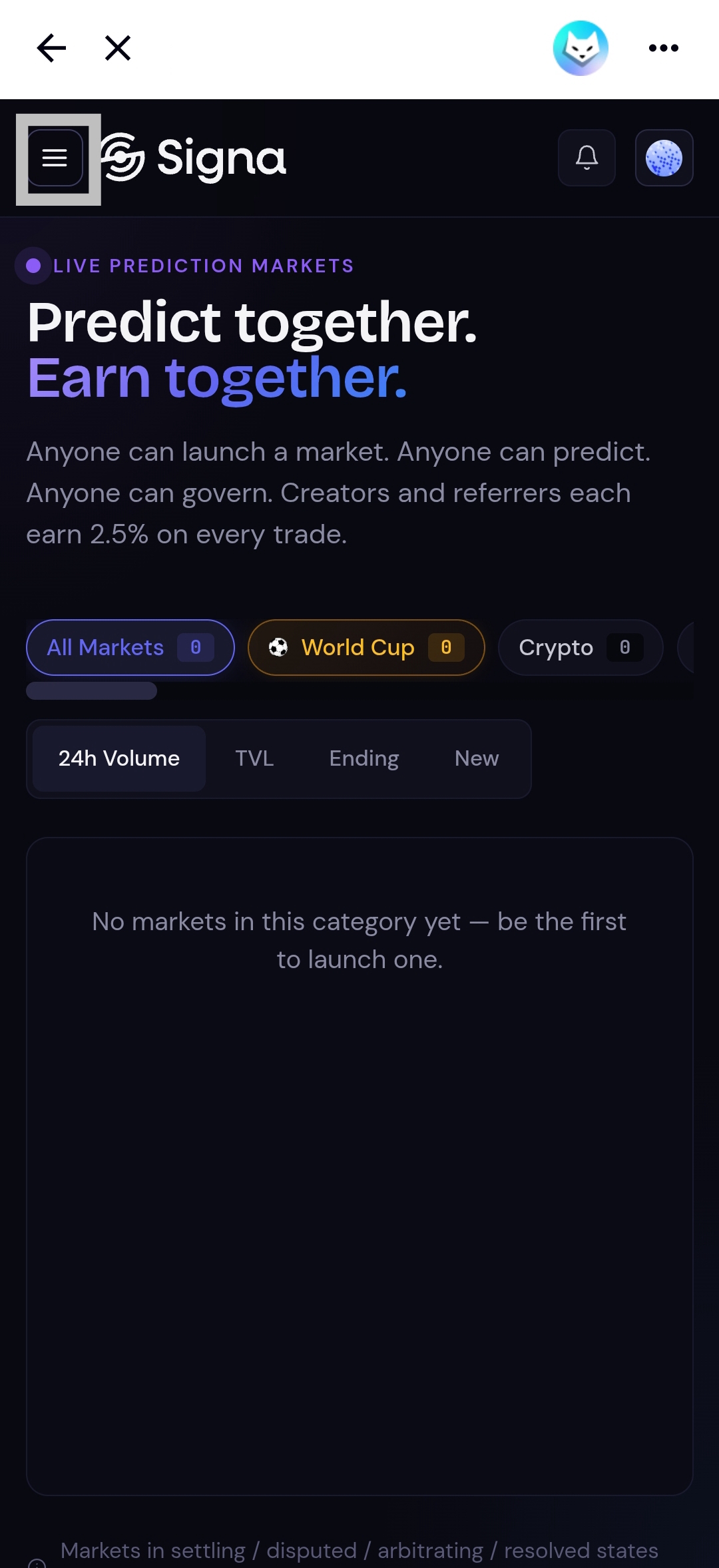 The menu button is in the top-left on every page. The bell icon opens notifications.
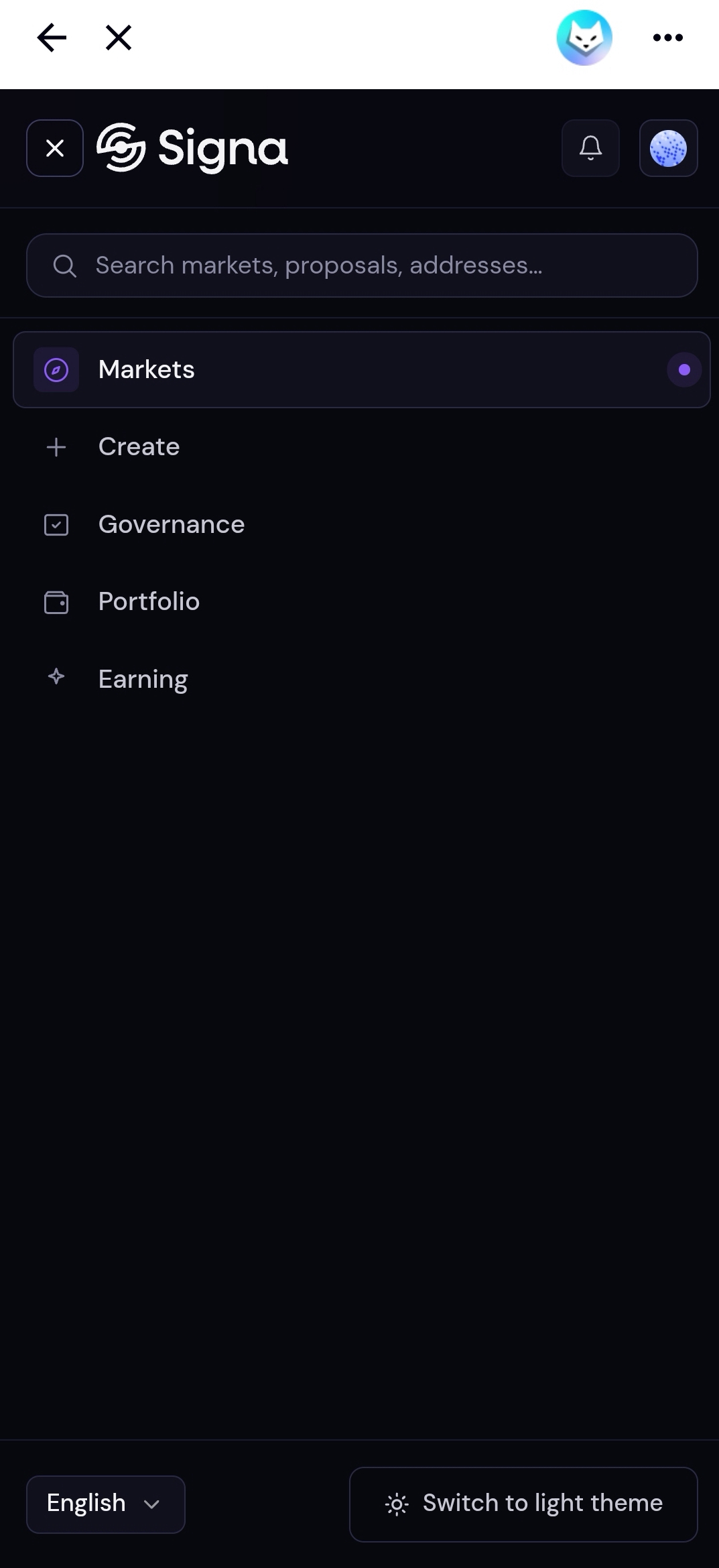 The navigation menu. Language and light/dark theme toggles are at the bottom.
Sections available from the menu:
- Markets — browse all live prediction markets
- Create — launch a new market
- Governance — view open dispute and arbitration cases
- Portfolio — track your positions and pending claims
- Earning — view and claim your creator and referral rewards
Language and theme are both accessible from the menu footer. Tap the language selector to switch between the supported languages, or tap Switch to light/dark theme to toggle the display mode.
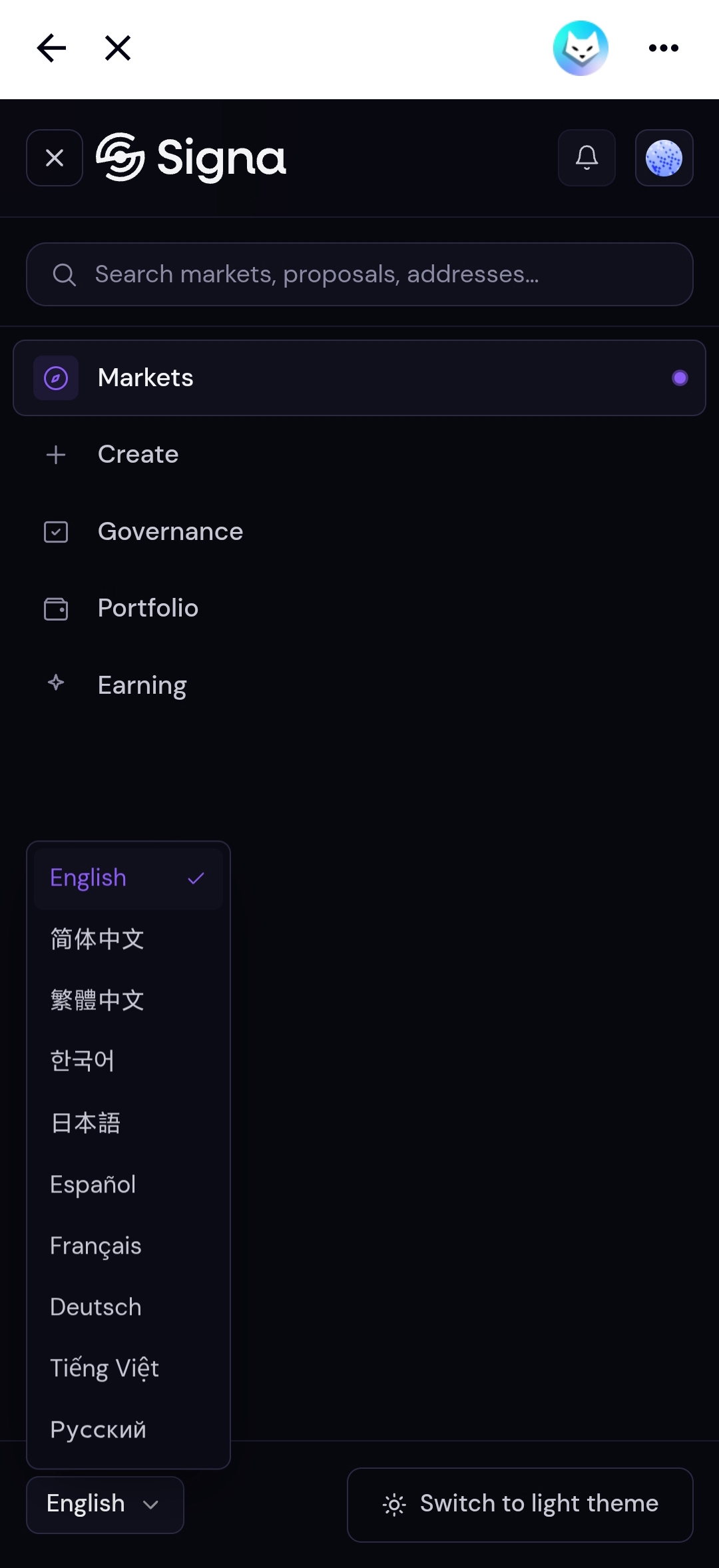 Tap the language button at the bottom of the menu to switch languages.